Turn a photo into calendar events on iPhone
Scan a sports schedule, school flyer, appointment card or screenshot. Review the candidate events it finds, then save the approved set to Apple Calendar.
What to look for
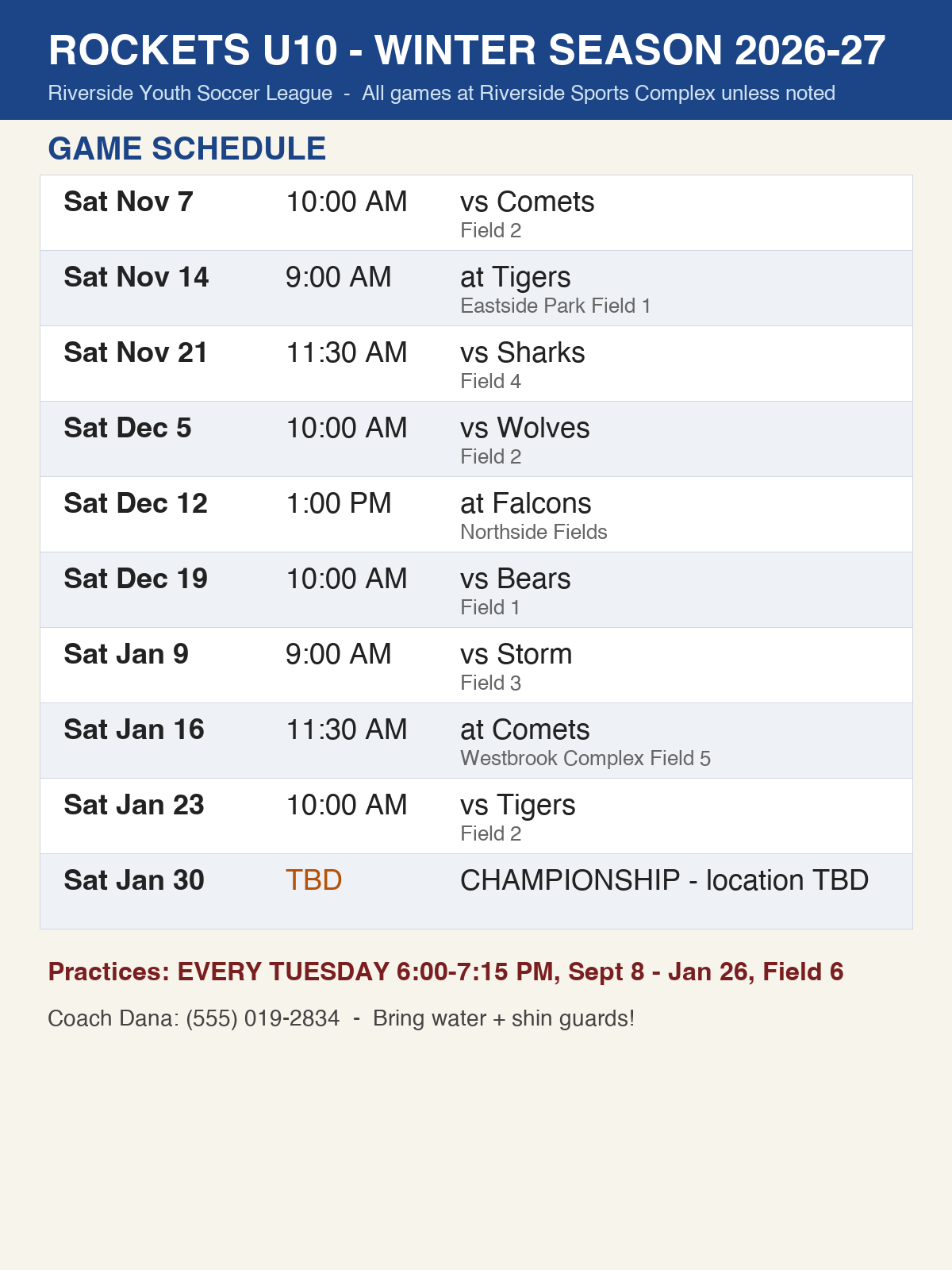
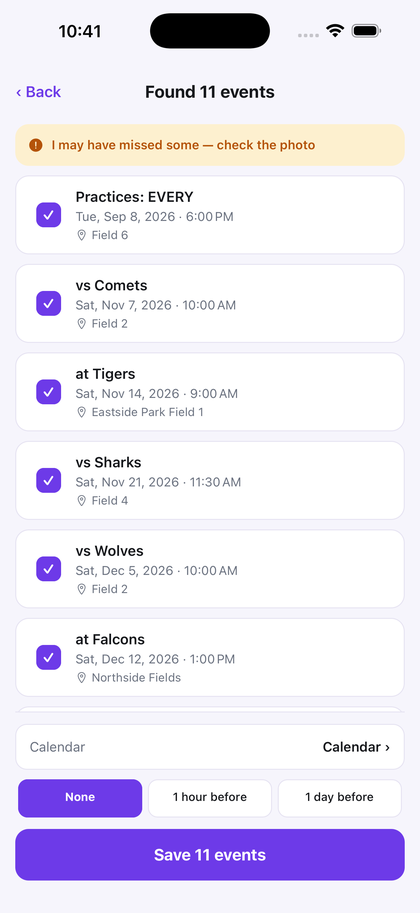
- Multiple events per photo. Many apps read one event and stop. A season schedule or a class list has a dozen, and doing them one at a time defeats the point.
- A review step you can edit. AI misreads things. An app that saves straight to your calendar without showing you first will eventually put something wrong in there quietly.
- End times, not just start times. A 30-minute meeting saved as an hour will block time you actually have free.
- Locations and notes. The address is what makes the event useful when you're leaving the house; the dial-in number is what makes it useful at your desk.
- No invented times. If the page doesn't print a time, the honest result is an all-day event — not a guess.
- Undo. If a scan goes wrong, removing exactly what it added should be one tap.
What a good photo-to-calendar app should preserve
It finds candidate dated rows in one pass, shows the set before saving, keeps supported start and end times, carries recognized locations and notes across, saves time-less dates as all-day events, and gives you a one-tap undo on the confirmation screen. If it isn't confident it read the whole page, it says so.
Common ways to make a calendar from a photo
Start with a whole sports season, a school calendar or flyer, an appointment card, a work invite your company won't sync, or a clear screenshot with event details.
Using a newer iPhone? Read the dated comparison of Apple Visual Intelligence and Snap to Calendar to choose the right workflow.
Try it on a schedule you'd otherwise type by hand.
Free to try — your first 3 successful scans. No deadline, no account, no sign-up.
Download on the App Store